PDF Split vs Extract Pages: What’s the Difference?
When working with large PDF documents, two common tasks often confuse users - splitting a PDF and extracting pages from a PDF. Although both deal with separating pages, they serve different purposes and are used in different scenarios. Understanding this difference helps you choose the right tool and avoid unnecessary rework or file duplication.
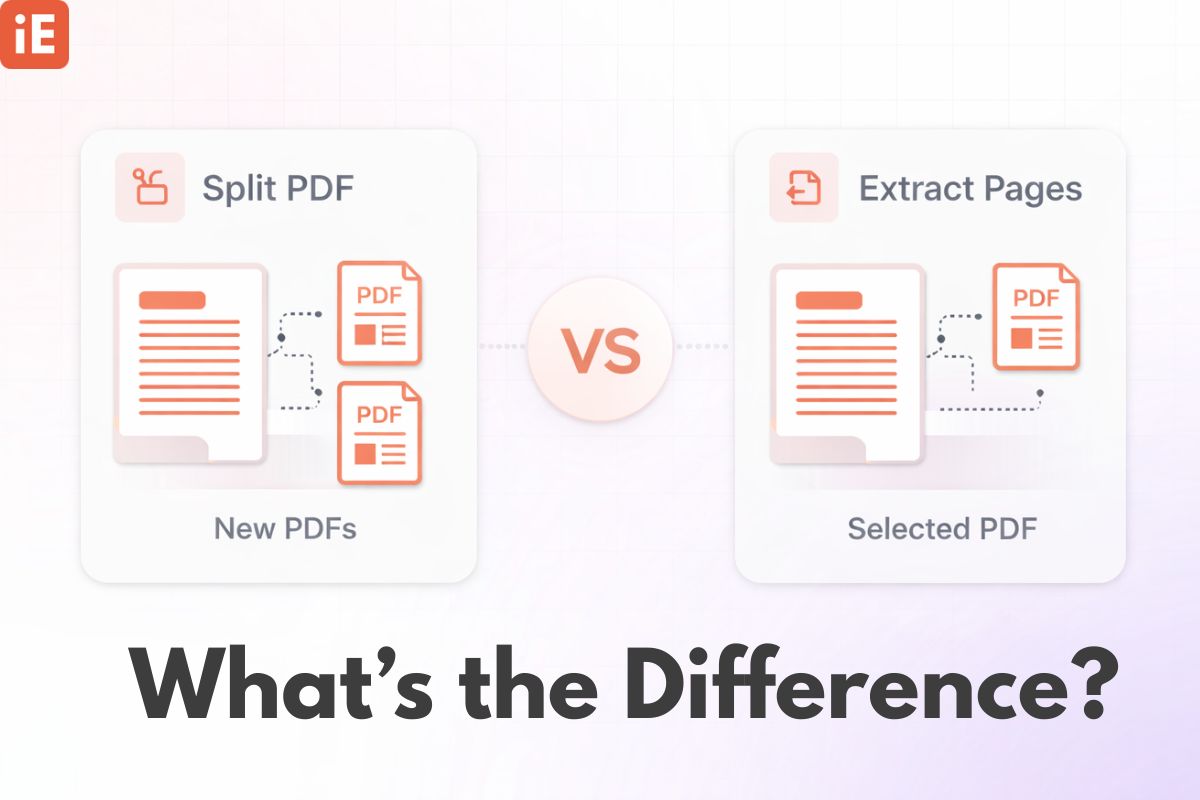
This guide explains PDF Split vs Extract Pages in simple terms, with real-world use cases and best practices, while referencing how you can do both easily using iEditOnline’s web-based tools.
What Does “Split PDF” Mean?
Splitting a PDF means dividing one PDF file into multiple separate PDF files. Each resulting file is independent and usually contains a defined page range or individual pages.
For example, if you split a 20-page PDF into 4 parts, you might get:
- File 1 → Pages 1–5
- File 2 → Pages 6–10
- File 3 → Pages 11–15
- File 4 → Pages 16–20
This operation is ideal when a single document needs to be distributed, archived, or processed separately.
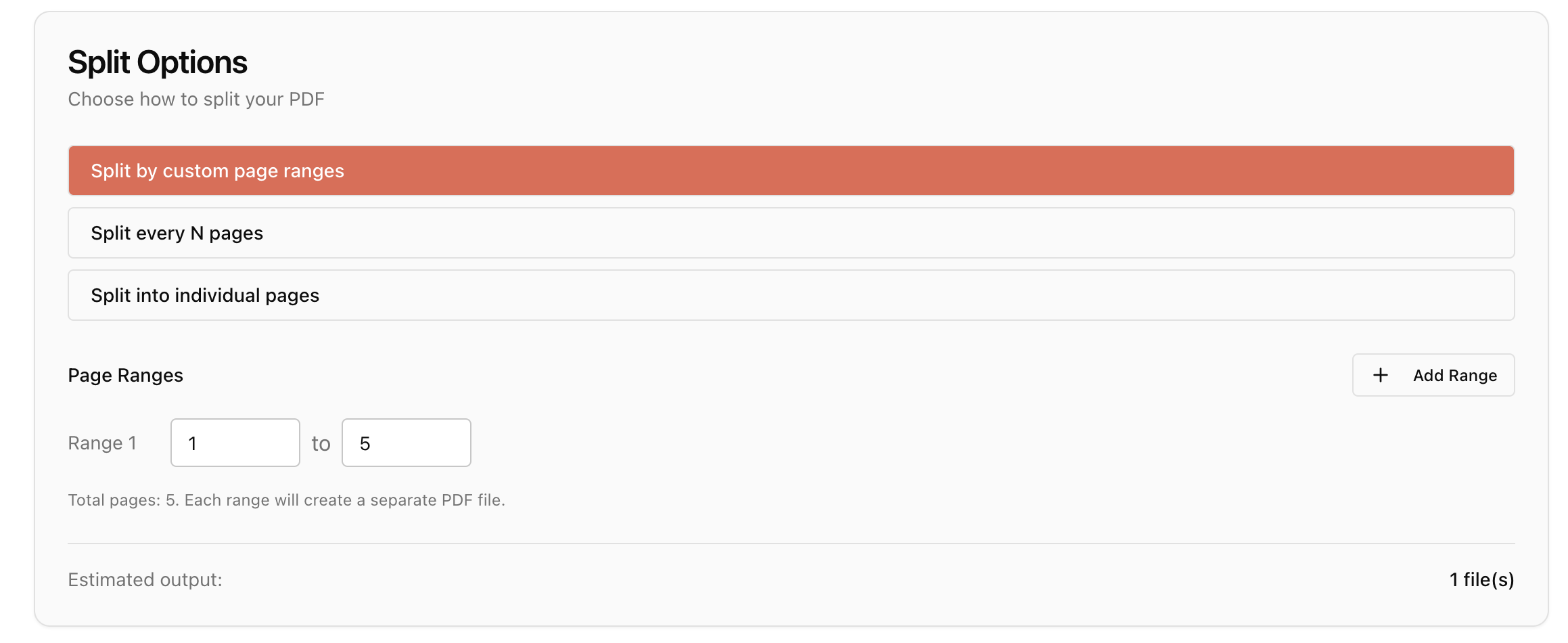
Using iEditOnline’s Split PDF tool, you can split by:
- Page ranges
- Every single page
- Custom intervals
All processing happens securely in your browser, without installing software.
Need to Split a Document?
Divide large PDFs into manageable files in seconds.
What Does “Extract Pages” Mean?
Extracting pages from a PDF means selecting specific pages and creating a new PDF , while keeping the original PDF intact.
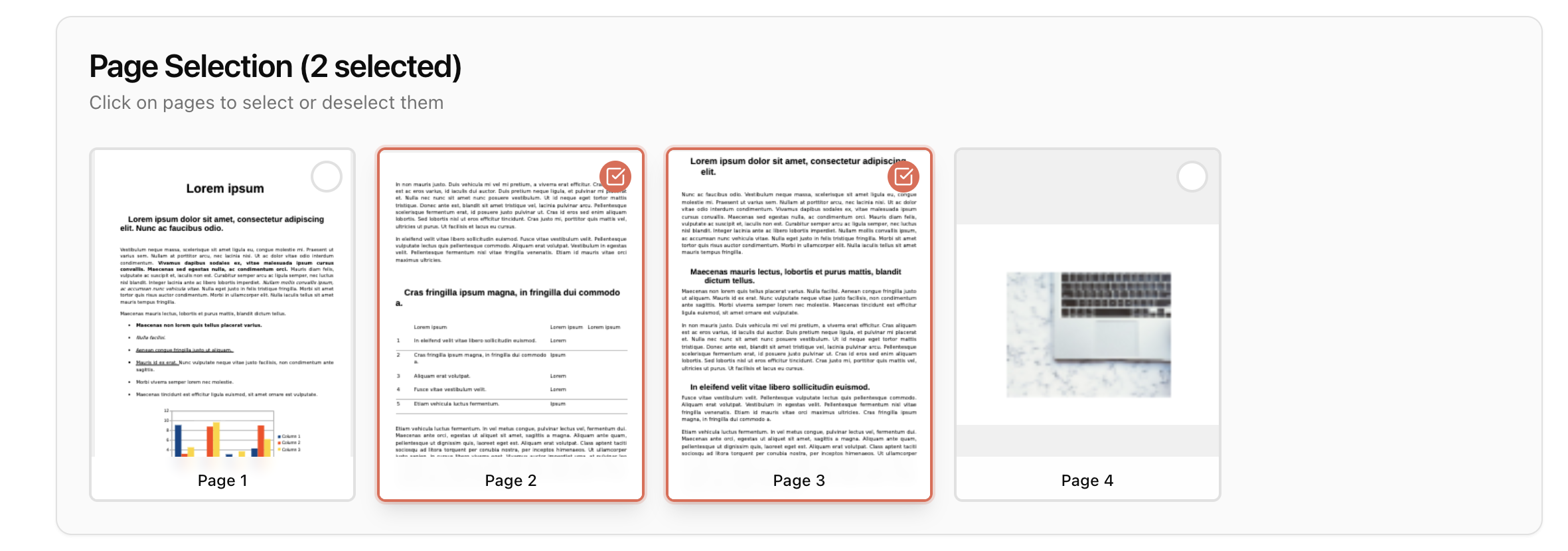
For instance:
- Original PDF → 50 pages
- Extracted PDF → Only pages 7, 12, and 25
The original file remains unchanged, and you get a new document containing only the selected pages.
This method is commonly used when you need only a few pages from a large document for sharing, reviewing, or submission.
With iEditOnline’s Extract Pages tool, you can:
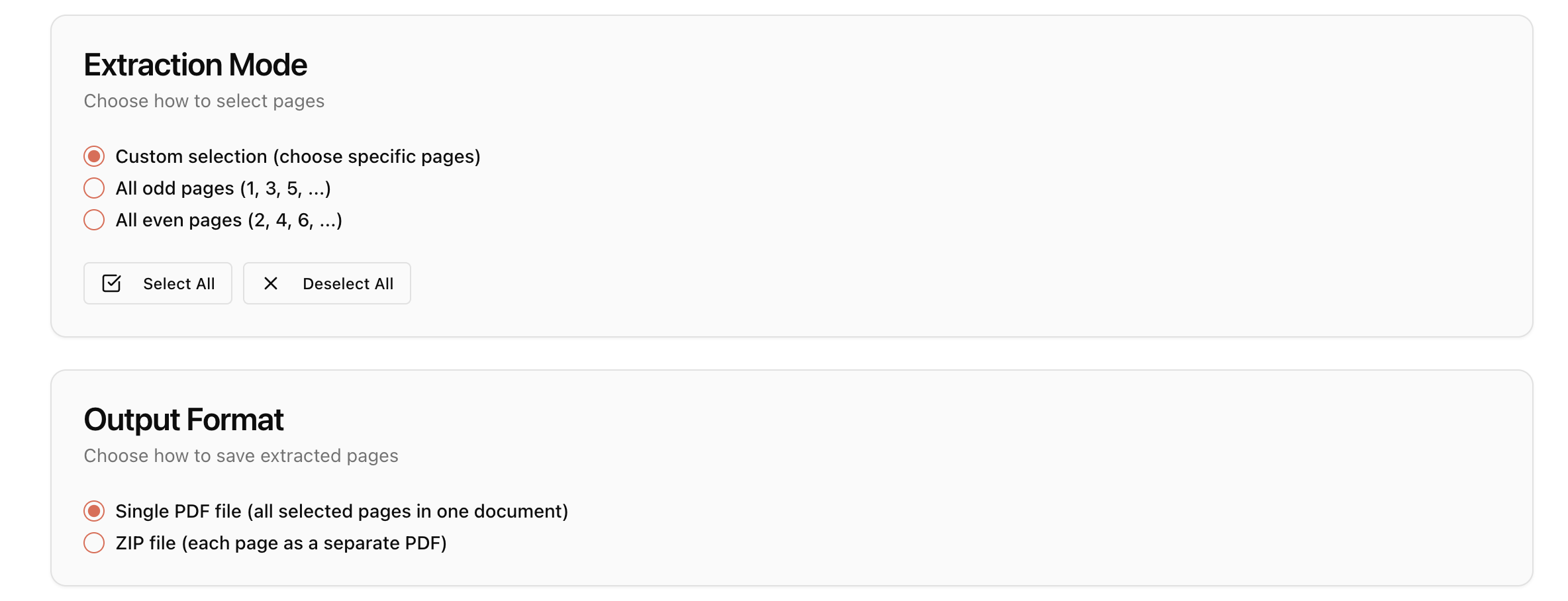
- Select exact pages
- Create a clean, new PDF
- Avoid altering the source file
Want to Extract Pages?
Select and save only the pages you need from any PDF.
PDF Split vs Extract Pages: Key Differences
| Feature | Split PDF | Extract Pages |
|---|---|---|
| Purpose | Break PDF into multiple files | Create a new PDF from selected pages |
| Original PDF | Often replaced or reorganized | Always remains unchanged |
| Output | Multiple PDFs | One new PDF |
| Best For | Large document distribution | Sharing specific pages |
| Use Case | Reports, contracts, manuals | Forms, invoices, certificates |
When Should You Use Split PDF?
You should use Split PDF when:
- A large PDF needs to be shared with multiple recipients
- Different sections must be stored separately
- You want to reduce file size by dividing content
- Each section will be edited or processed independently
Businesses often use PDF splitting for legal documents, training manuals, and monthly reports.
When Should You Use Extract Pages?
You should use Extract Pages when:
- Only a few pages are needed from a long PDF
- You want to keep the original file unchanged
- You’re submitting selected pages to an authority or client
- You’re creating a reference or summary document
This approach is common for academic submissions, KYC documents, and application forms.
Which Option Is Better?
There is no “better” option - only the right tool for the right task.
- Choose Split PDF if you want to divide a document into logical parts.
- Choose Extract Pages if you only need selected pages while preserving the original PDF.
Both tools are essential in professional document workflows, and both are available for free on iEditOnline.
Why Use iEditOnline for PDF Split and Extract?
iEditOnline is designed for fast, privacy-focused, browser-based PDF editing, making it ideal for both individuals and professionals.
Whether you’re splitting a 200-page report or extracting a single certificate page, iEditOnline’s tools ensure speed, security, and simplicity.
Final Thoughts
Understanding the difference between PDF Split vs Extract Pages helps you work smarter with documents and avoid unnecessary duplication or data loss. If your goal is organization and separation, go with Split PDF. If your goal is precision and selective sharing, use Extract Pages. Both tasks can be completed easily and securely using iEditOnline’s PDF tools, making it a reliable choice for modern, on-page PDF management.
Start Organizing Your PDFs Today
Try our free Split and Extract tools now without any installation.